 0c72961320
|
||
|---|---|---|
| Example | ||
| UIAnimatedTextField | ||
| .gitignore | ||
| LICENSE | ||
| README.md | ||
| UIAnimatedTextField.podspec | ||
README.md
UIAnimatedTextField
Installation
UIAnimatedTextField is available through CocoaPods. To install it, simply add the pod 'UIAnimatedTextField' and the source for podspecs to your Podfile. For example:
source "https://github.com/iznv/Podspecs.git"

platform :ios, '9.0'
use_frameworks!

target "ProjectName" do
    pod 'UIAnimatedTextField'
end
Usage
Set height of UIView to 50. Create IBOutlet:
@IBOutlet weak var textField: UIAnimatedTextField!
In order to enable placeholder, set placeholder property:
textField.placeholder = "Enter something"
Simple type
By default you use simple type. It is just a text field.
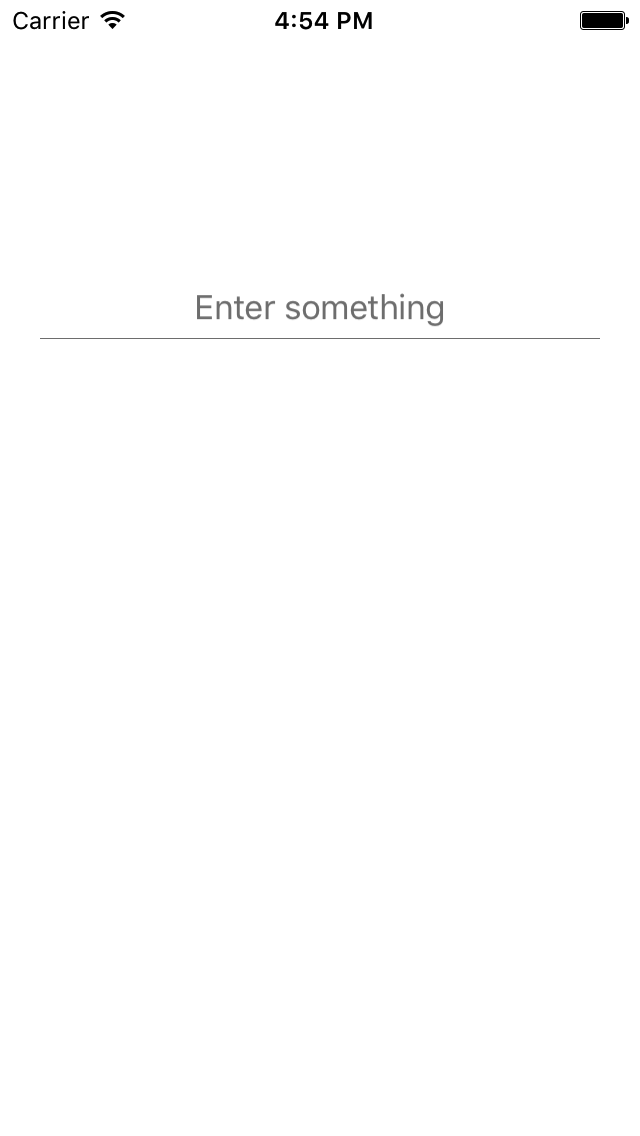
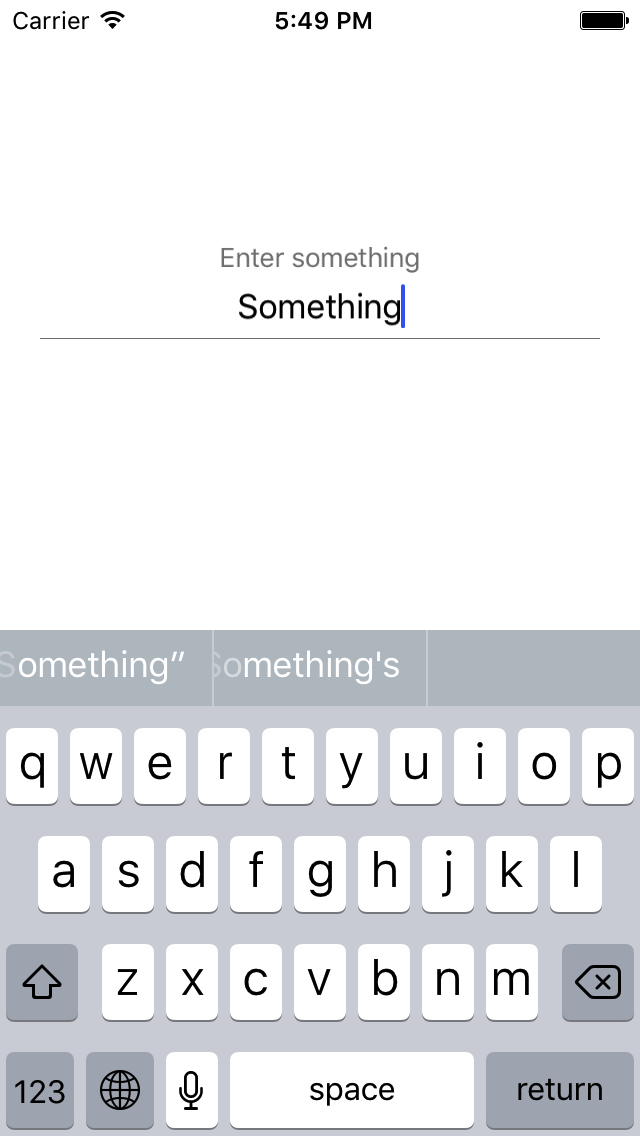
Password type
In order to use UIAnimatedTextField for password input, specify its type as .password
textField.type = .password
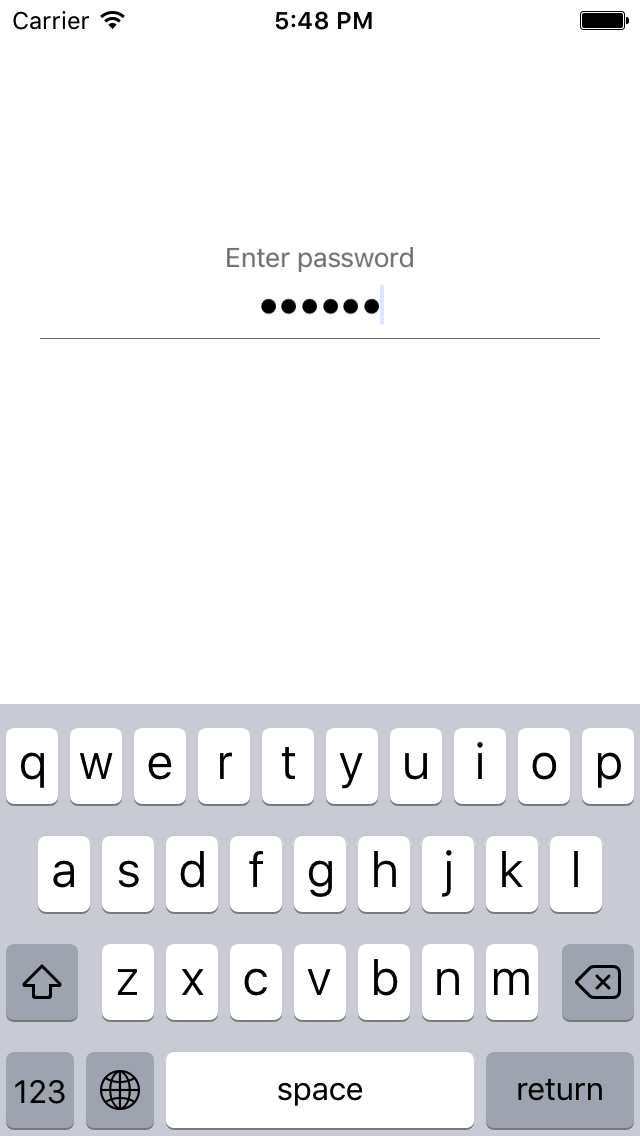
Date type
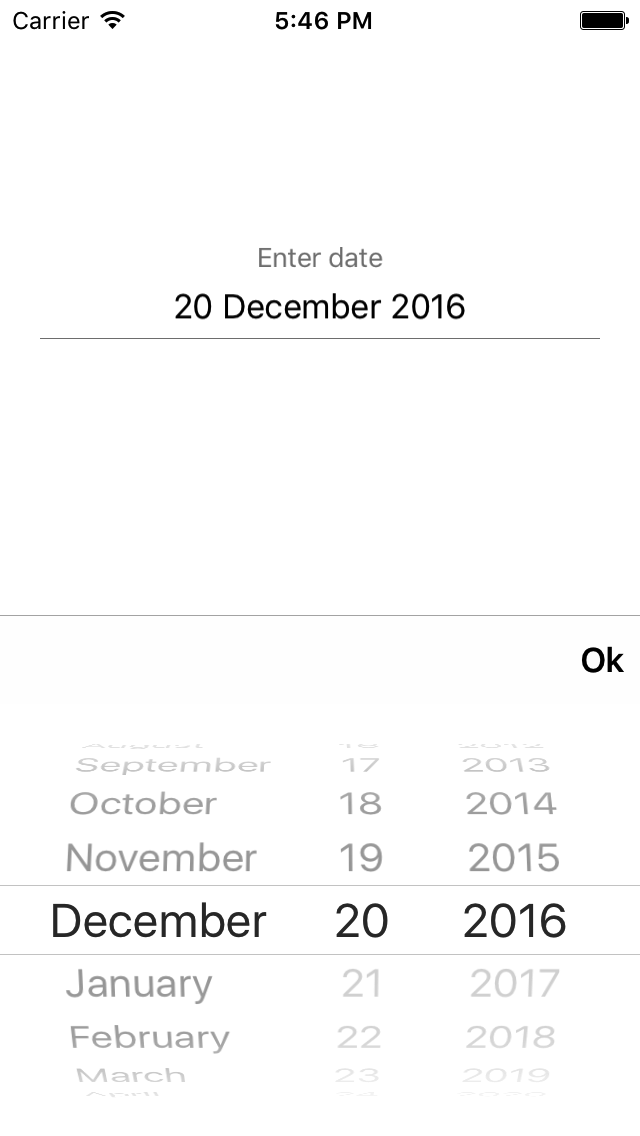
In order to use UIAnimatedTextField for date input, specify its type as .date
textField.type = .date
Also you can set date format and done button title:
// "Done" by default
textField.doneTitle = "Ok"
// "dd/MM/YYYY" by default
textField.dateFormat = "dd MMMM YYYY"
License
Copyright (c) 2016 Touch Instinct
UIAnimatedTextField is available under the MIT license. See the LICENSE file for more info.